Managing team members
Invite members to your Datatape organization, assign roles, and manage access.
Managing team members
Datatape organizations support multiple members with role-based access control. All sources, tools, agents, and toolsets are scoped to the organization and shared among its members according to their role.
Inviting members
- Go to Settings > Team
- Click Invite member
- Enter the person's email address
- Select a role: Admin, Editor, or Viewer
- Click Send invite
The invitee receives an email with a link to join your organization. If they don't have a Datatape account, they'll be prompted to create one first.
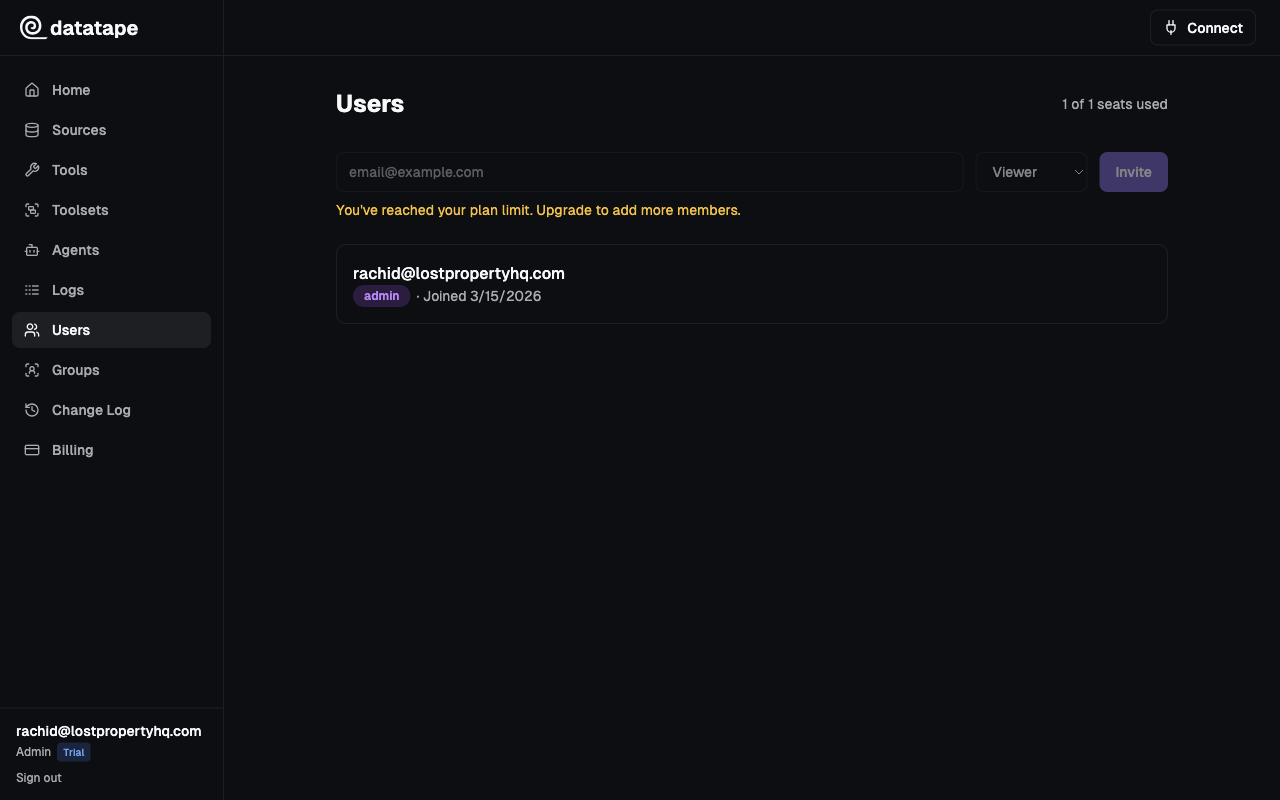
Only Admins can invite new members. See Roles and permissions for the full permission matrix.
Viewing your team
The Team page lists all members with their:
- Name and email
- Role (Admin, Editor, or Viewer)
- Join date
- Last active date
Changing a member's role
- Find the member on the Team page
- Click the role dropdown next to their name
- Select the new role
- Confirm the change
Role changes take effect immediately. The member's active sessions update on their next API call.
You cannot demote yourself if you are the last Admin. Every organization must have at least one Admin.
Removing a member
- Find the member on the Team page
- Click Remove
- Confirm the removal
When a member is removed:
- They lose access to the organization immediately
- Their past audit log entries are preserved
Organization-scoped access
All access in Datatape is scoped to the organization:
- A user can belong to multiple organizations
- Switching between organizations changes which sources, tools, agents, and toolsets are visible
- Roles are independent per organization — you can be an Admin in one org and a Viewer in another